
Quick Start
Prepare first, then submit
Use this guide to prepare a competition-ready JPEG, upload it to Photo Contest Pro, and confirm your entry before the deadline.
Before You Begin
Check these requirements before uploading a projected competition entry.
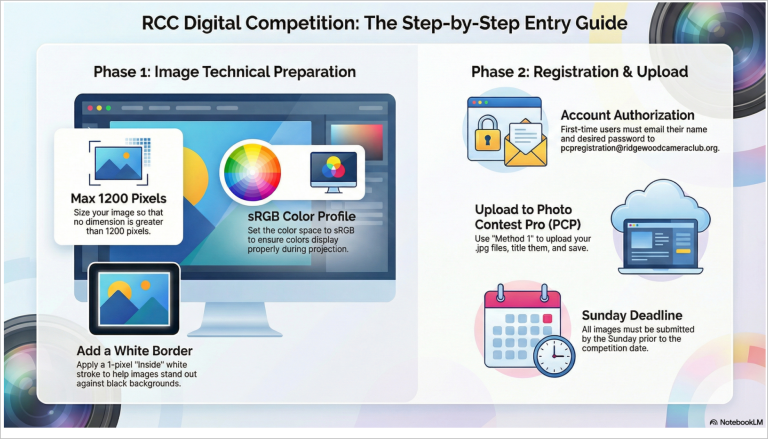
- No image dimension is greater than 1,200 pixels.
- The file is a JPEG with a .jpg extension, not .jpeg.
- The color profile is sRGB.
- You are entering no more than two images in each projected category.
- Your entry will be submitted by midnight Sunday before the competition.
- Your title is complete and the image appears in your saved entries.
Optional: A 1-pixel inside white border can help an image edge remain visible against a black projection background. It is not a competition requirement.
Get Access to Photo Contest Pro
RCC uses Photo Contest Pro (PCP) to collect projected images and the digital files that accompany print entries.
- If you already have an account, continue to image preparation below.
- First-time users should email their name and RCC membership email address to pcpregistration@ridgewoodcameraclub.org.
- Follow the registration team's instructions to activate your account and set your password. Do not send a password by email.
Prepare Your Image
- Finish your normal editing and save a master copy.
- Resize a submission copy so neither width nor height exceeds 1,200 pixels.
- Convert the submission copy to the sRGB color profile.
- Save it as a JPEG with the extension .jpg.
- Open the saved file once to confirm its dimensions, color, and appearance.
Photoshop steps
- Choose File > Automate > Fit Image, then enter 1200 for both width and height.
- Choose Edit > Convert to Profile and select sRGB.
- Optional border: choose Select > All, then Edit > Stroke; use 1 pixel, white, and Inside.
- Choose Save As and save a JPEG ending in .jpg.
Lightroom Classic steps
- Choose File > Export.
- Under File Settings, select JPEG and sRGB.
- Under Image Sizing, select Resize to Fit, choose Long Edge, and enter 1200 pixels.
- Export the file and confirm it ends in .jpg. If you want the optional border, add it with an export plugin or image editor.
Upload and Save Your Entry
- Open Photo Contest Pro and sign in.
- Open the image-submission area. Depending on the current PCP screen, look for Submit Images or Method 1.
- Select the correct competition and class: Pictorial, Nature, Assigned Subject, Color Print, or Monochrome Print.
- Choose your .jpg file, enter the image title, and save the entry.
- Review your submitted pictures and confirm the correct thumbnail, title, and class appear.
Final Check and Deadline
- Correct competition and class selected.
- Thumbnail, title, and file are visible in your saved entries.
- No more than two images entered in each projected category.
- Submission completed by midnight Sunday before the competition.
Print competitors: You may enter up to three Color Prints and three Monochrome Prints. Upload the corresponding digital file for each print by the same Sunday deadline, and bring the labeled print on competition night.
Last updated September 2026.